Effective 2026-04-15 · v1.0
A practical, end-to-end walkthrough of the Diabec app: how to set it up, log your day, get insights, share with people you trust, order supplements, and stay safe.
Diabec is a private daily companion that helps you:
Diabec is not a glucose meter, a continuous glucose monitor, an insulin pump, a pharmacy, an emergency service, or a substitute for your doctor or diabetes educator. Always confirm any reading or AI suggestion with a calibrated device or a clinician before acting on it — especially before a dose decision.
Make sure you have:
If you bought Diabec supplements at dia-bec.com, use the same email you used at checkout — that way your subscription, orders, and tracking history sit in one account.
Open the app and tap Create account.
| Field | Required? | Why we ask |
|---|---|---|
| Name | Yes | So the app can address you and so support emails feel personal |
| Yes | Login + password reset + order receipts | |
| Password | Yes — 8+ characters | Standard account security |
| Phone | Optional | Only if you want SMS reminders or a callback. You can skip and add later |
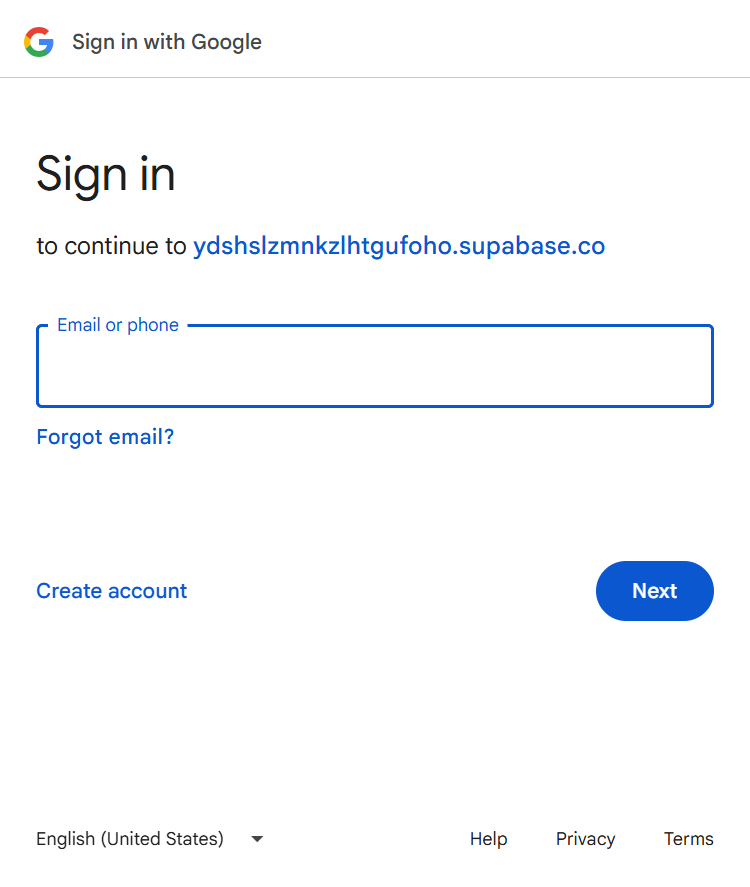
You can also sign in with:
Tip. If you use Google sign-in, your Google email becomes the only way back into your account. Make sure that Google account is one you'll keep long-term.
After signup, you'll receive a welcome email. You don't need to click anything in it — your account is already active.
After signup we ask three questions to personalise the app:
You can also pick a time zone (defaults to your phone's). Get this right or your meal/glucose timestamps will be off.
Everything in onboarding is editable later. Don't worry about getting it perfect now.
The home screen is mission-control. It shows today's timeline plus four quick-add buttons that are always within thumb's reach.
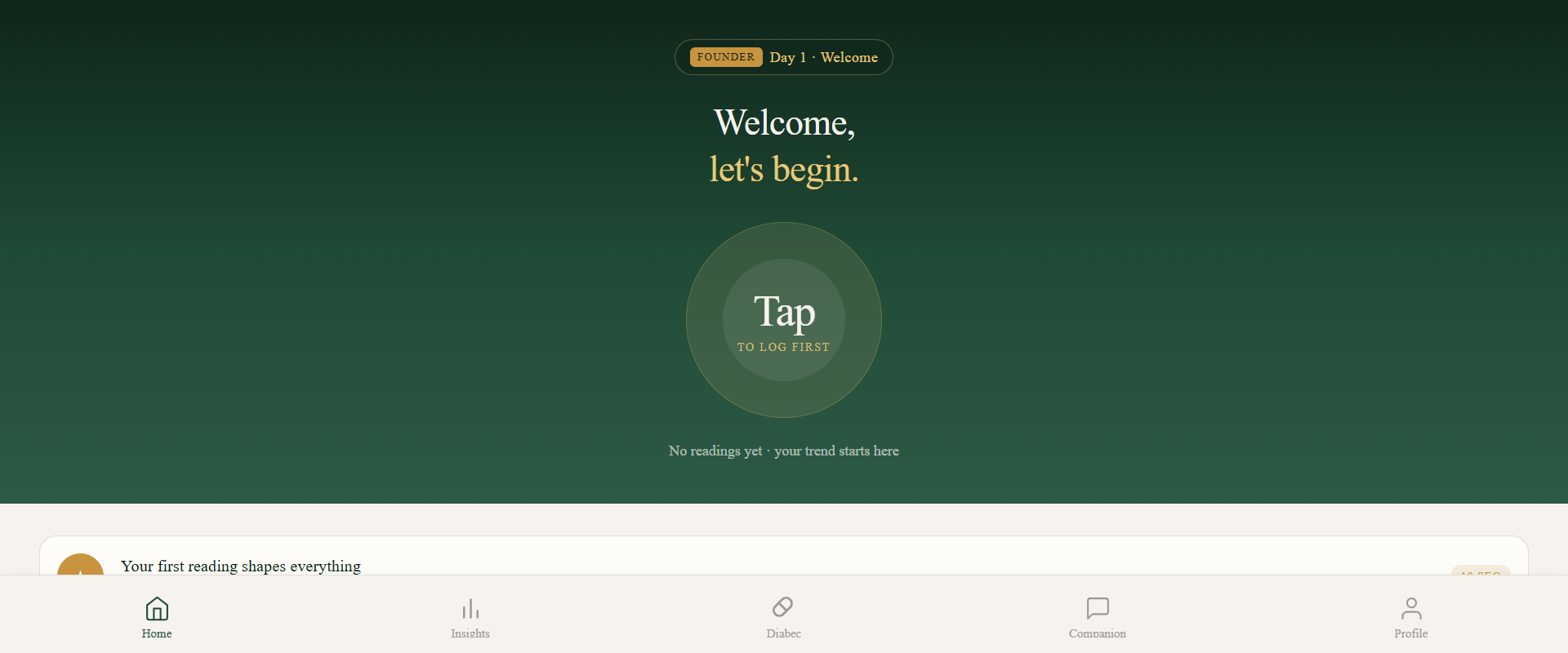
| Button | What it does | Time to log |
|---|---|---|
| Glucose | Numeric reading from your meter or CGM | ~5 sec |
| Meal | What you ate (photo, voice, or text) | 10–30 sec |
| Supplement | Diabec or any other supplement / medication | ~5 sec |
| Mood | One-tap distress check-in (1–5 scale) | 2 sec |
Above the timeline you'll see today's snapshot: latest glucose, time since last reading, and a small trend arrow.
Tap any timeline item to edit, add a note, or delete. Long-press to copy (useful if you eat the same breakfast every day).
Tap Glucose, type the number, tap save. The app auto-stamps the time.
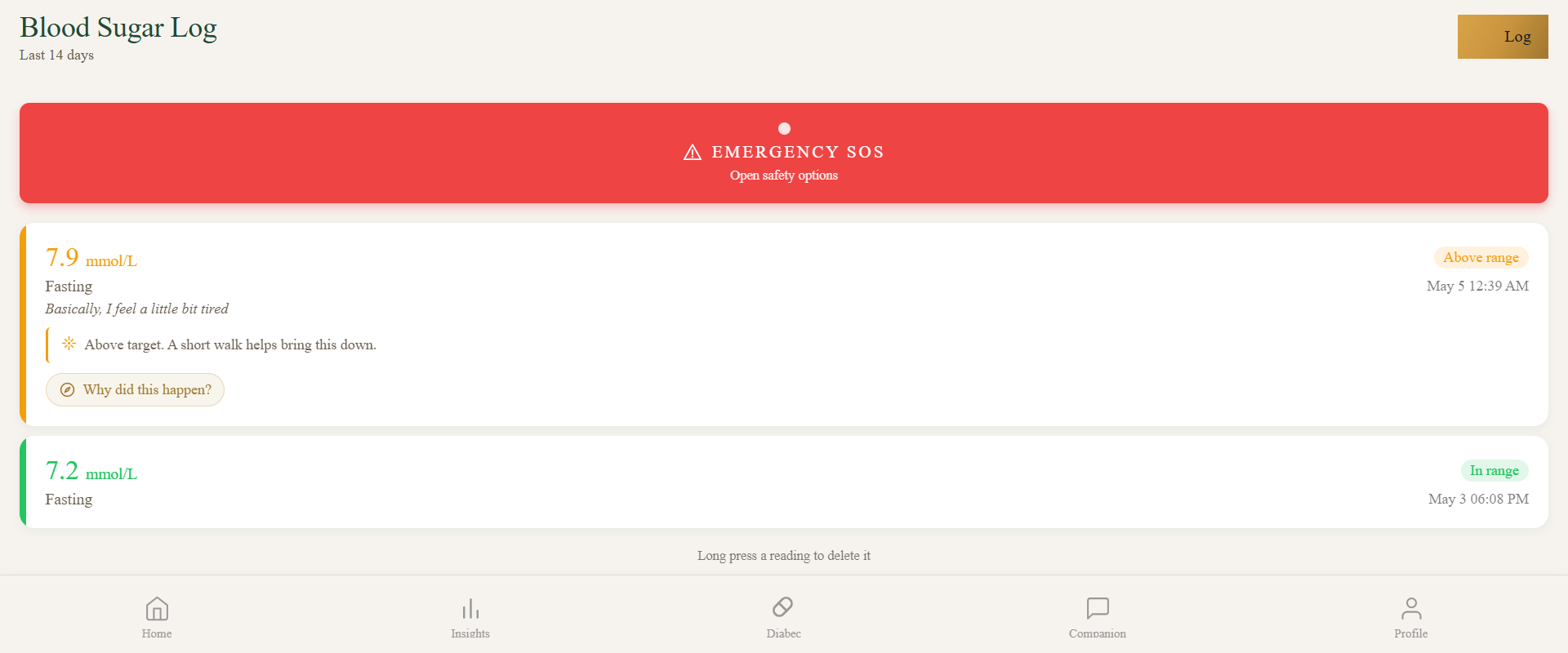
Optional fields:
If your reading is unusually high or low for your pattern, Diabec offers a Spike Detective suggestion — a private AI-generated note about what may have caused it (recent meal, sleep, stress, missed dose). It's a hypothesis, not a diagnosis.
Backdating. Tap the time chip to log a reading from earlier today or yesterday. Bulk import: Profile → Import data accepts most common meter CSV formats.
Three ways, pick whichever is fastest in the moment.
Tap Meal → Camera, take the photo. Diabec estimates carbs, protein, and fiber and offers a name you can edit.
Best results come from a top-down angle, good light, and a reference object in frame (a fork or a hand).
Tap the mic and say something like: "a bowl of oatmeal with blueberries and a tablespoon of almond butter." Pause naturally — the app waits ~2 seconds of silence before stopping.
Free text works fine — "two slices of sourdough toast, one egg, half an avocado." The AI fills in the gaps.
At a restaurant? Tap Meal → Menu Decoder, snap the menu, tap the dish you're considering. You'll get a quick carb / sugar / fiber estimate before you order.
Tap Supplement to log any pill, drop, or injection. The Diabec supplement comes preloaded so reorders and dose tracking line up automatically.
To add a new item:
After that it's a one-tap log every day. Tap the bell on any saved item to set a daily reminder.
Diabec stores what you tell it. It does not adjust your prescription, change doses, or substitute for a pharmacist's review. Always check interactions with your doctor.
Diabetes is mentally heavy. Diabec includes a private mood check-in modeled on the validated Diabetes Distress Scale.
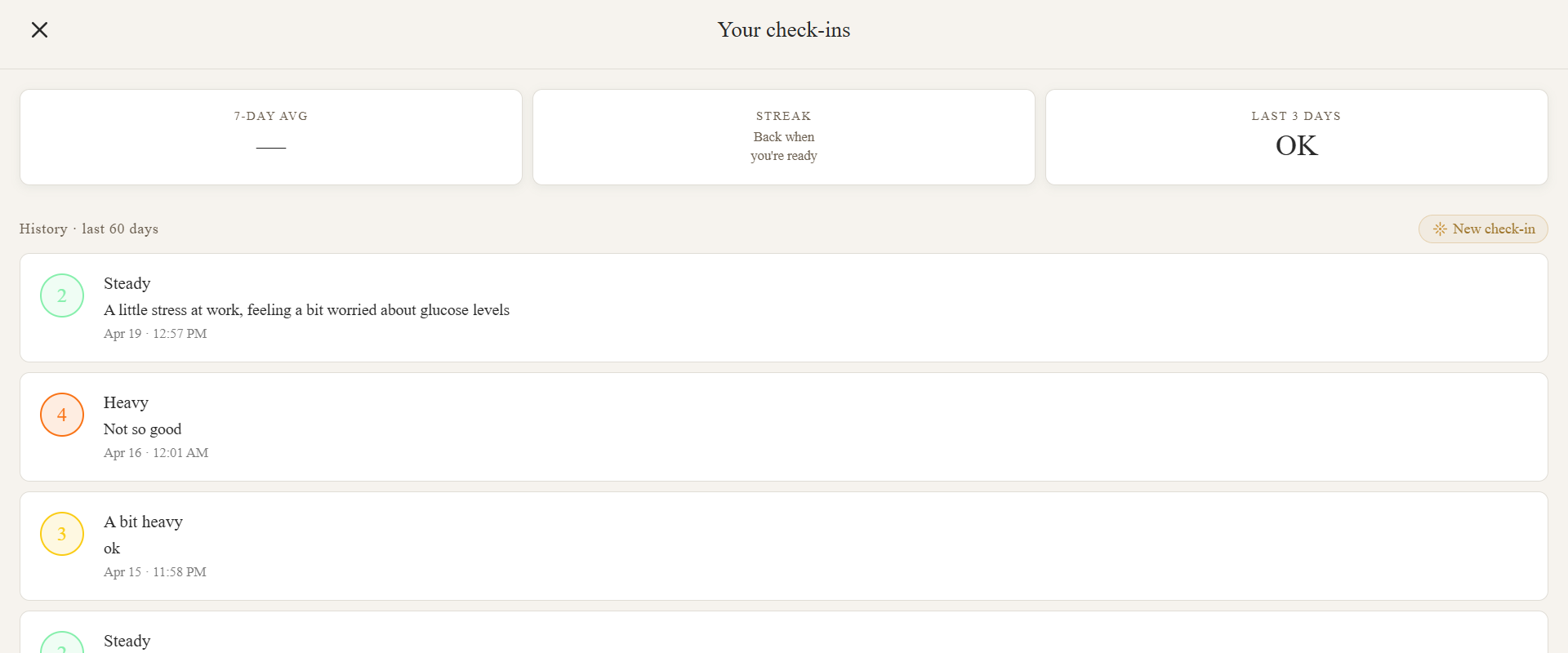
Tap Mood and choose 1 to 5 (calm to overwhelmed). Optional tags: tired, anxious, frustrated, hopeful, proud, lonely, focused. Optional note in your own words.
These entries are never posted to the community and are not shared with Care Circle unless you turn that on explicitly. Only you see them. The Companion can read them privately to suggest a reframe — for example, after three "overwhelmed" days in a row.
Tap the Companion tab to chat with your private assistant. It can read your tracked data and answer in plain language.
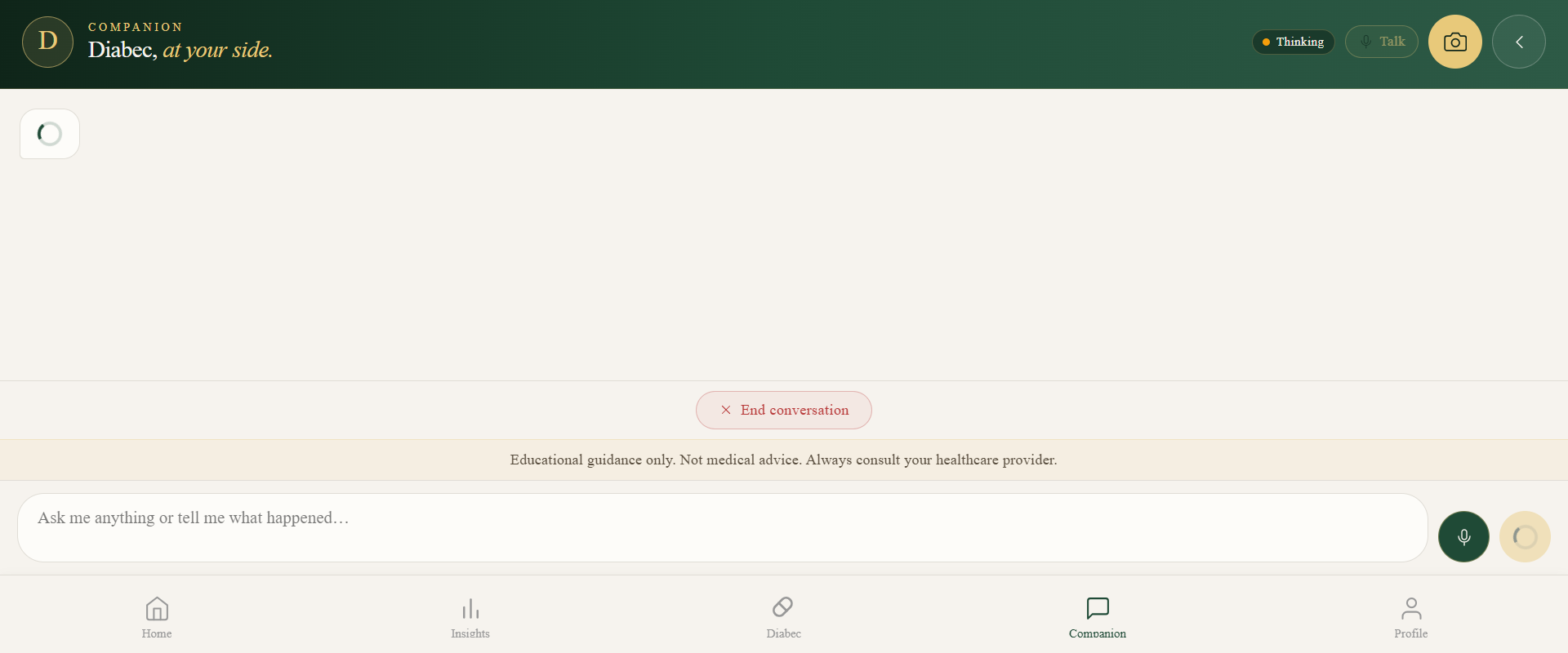
Things it does well:
Things it cannot do: diagnose anything, recommend insulin doses or medication changes, reach a real human (use Call Diabec), or see data you haven't logged.
Voice mode. Tap the mic icon to talk instead of type. Hands-free works well while cooking, walking, or before bed.
Privacy. Companion conversations are processed by AI providers (Anthropic, with OpenAI and Google as fallbacks) under data-processing agreements. None train on your data, and they retain it only briefly for safety review (typically up to 30 days). Full details in the Privacy Policy.
Tap Profile → Call Diabec for a real voice call with our support agent.
Useful for order, shipping, and subscription questions; general supplement questions; or talking through a tough day with a real voice on the other end.
The call is voice-only. The agent has access to your account context (name, recent orders) but does not see your private mood notes or detailed glucose history unless you mention them.
If we need to call you — for example to confirm a delivery — your phone will ring with a Diabec incoming-call screen. Tap Accept or Decline. See the next section for how to make sure that ring works.
For Diabec to reach you when the app is closed, you need to enable push notifications.
If your phone shows "Blocked," the system permission was denied earlier. Open your browser settings and re-allow notifications for the Diabec site.
Both ringtone and vibration stop the moment you accept, decline, or the timeout fires.
Care Circle lets up to 5 trusted people see chosen parts of your data and respond to SOS.
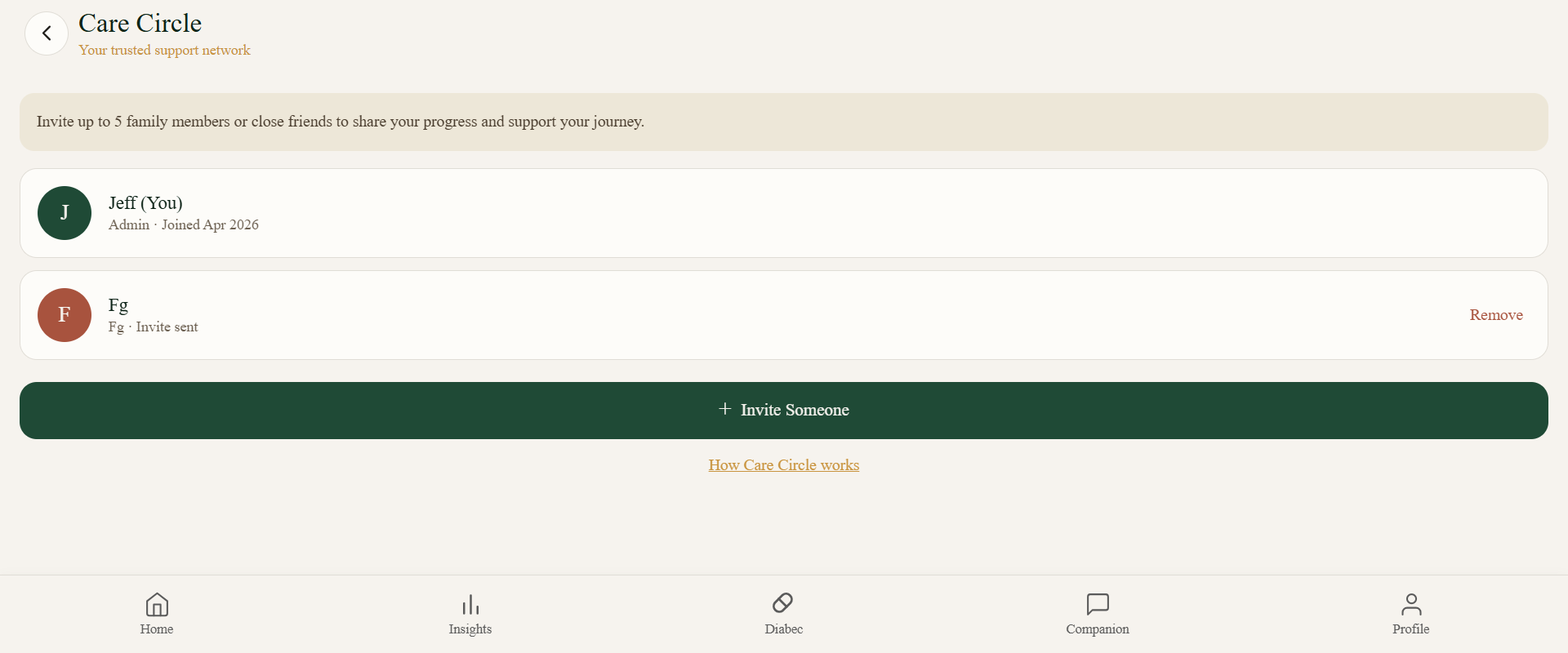
They get a one-tap accept link. Until they accept, the slot shows as Pending.
Swipe left on their name → Remove. The change is instant; they lose access immediately.
Care Circle is for support, not surveillance. Anyone you remove loses access immediately.
If you feel unwell and want help fast, tap SOS at the top of the home screen. Hold for 2 seconds to confirm — this prevents accidental taps.
What happens:
To resolve an alert: tap Resolve on the home screen banner, or any Care Circle member can resolve it from their app.
The Insights tab shows patterns Diabec finds in your tracked data — usually after you've logged consistently for a week or two.
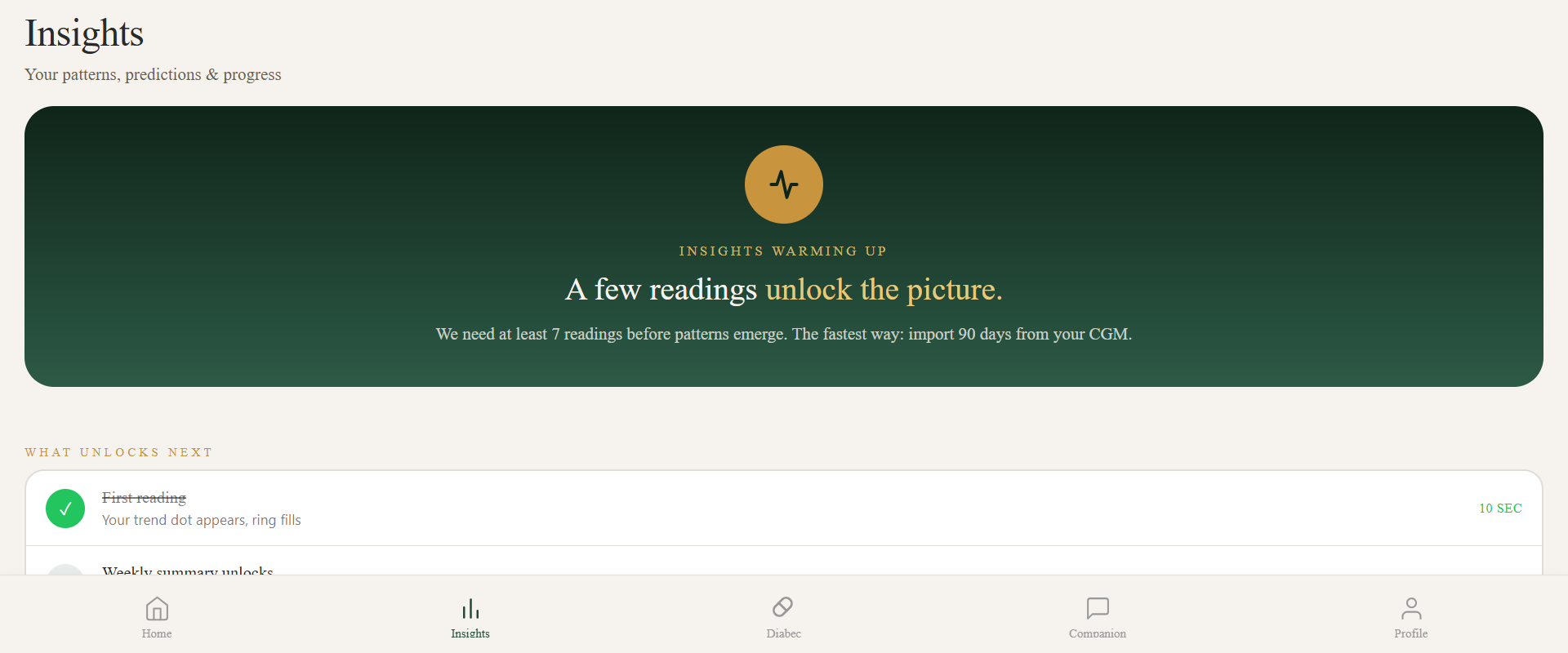
Cards you'll see:
Tap any card to drill down. Tap Export to download the data behind it.
Insights are generated from your data only. They are descriptive — they describe patterns — not prescriptive. They do not tell you to eat or do anything.
Before a check-up, tap Insights → Visit Coach.
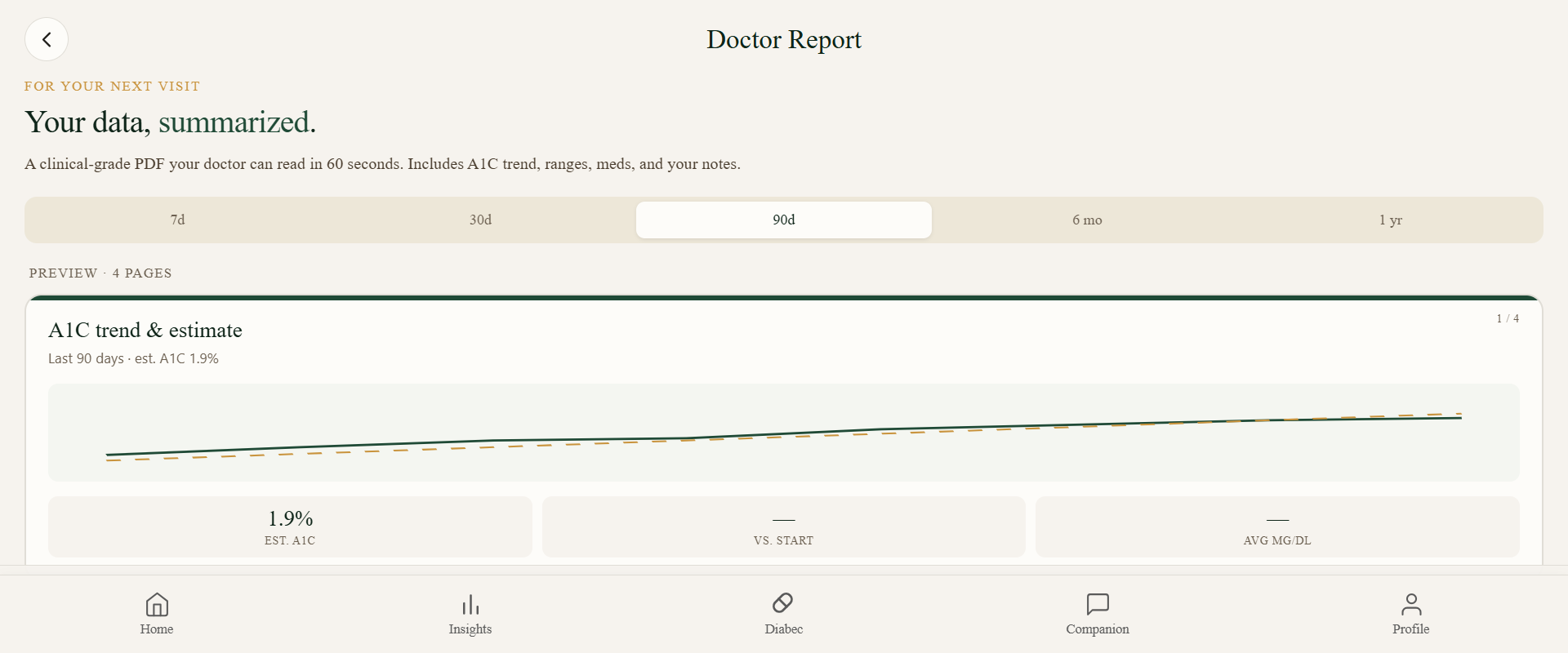
You'll get a one-page summary covering the last 30 or 90 days, plus 3 to 5 questions worth raising with your doctor — for example, "My morning fasting averaged 142 — should we revisit my evening dose?"
You can email it to yourself, print, save as PDF, or share via WhatsApp / Messages.
Bring it to the appointment. Doctors generally appreciate patients who arrive with structured data.
A more detailed cousin of Visit Coach. Insights → Doctor report generates a multi-page PDF with:
Useful for endocrinology visits, insurance claims, or second opinions.
Anything in the report is data you entered. We don't add anything you didn't log.
Tap the Shop icon to browse and reorder Diabec supplements.
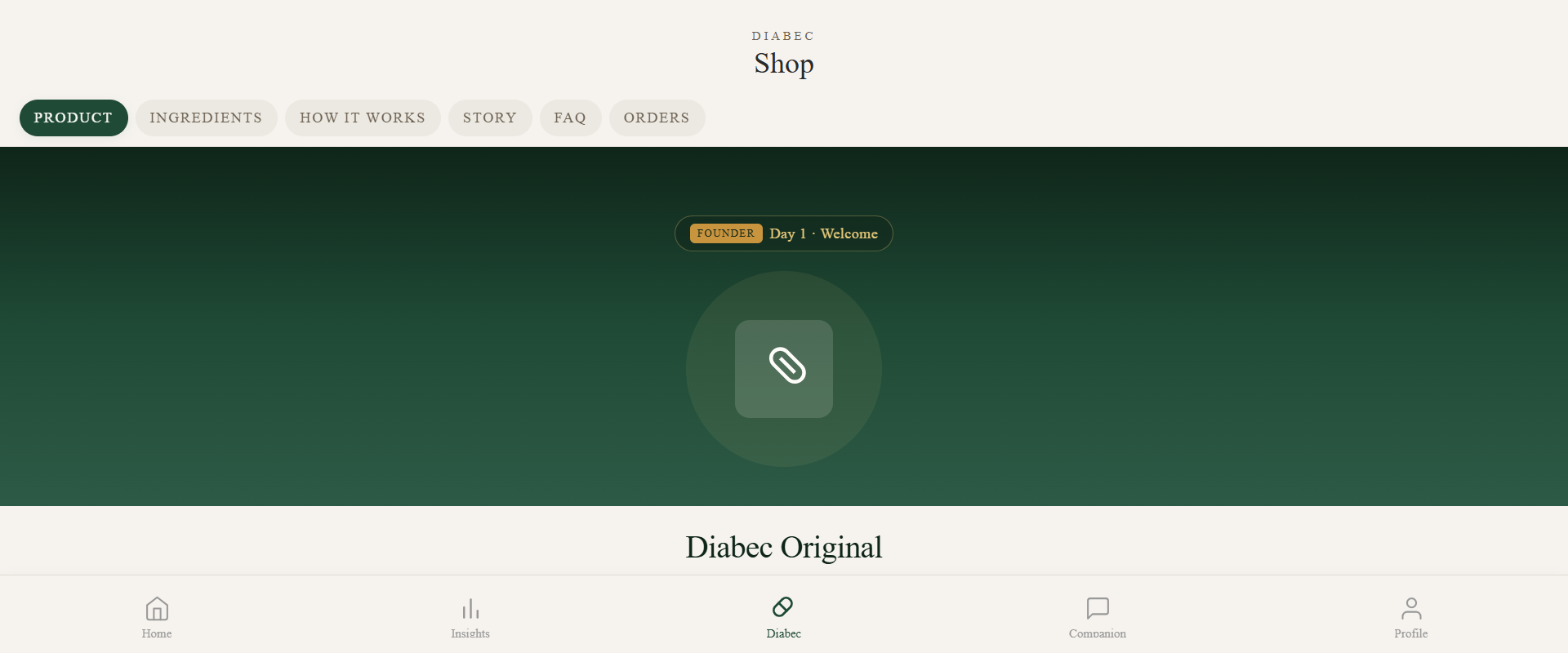
Diabec watches your daily intake (based on what you log) and predicts when you'll run out. About 7 days before that date, the home screen shows a reorder card with a single-tap reorder button. Smart Reorder hides itself when supply is healthy — no nagging.
Payments go through Shopify Payments / Stripe. Diabec never sees or stores your card number. Subscription billing happens on dia-bec.com, not inside the app.
The app uses HubSpot for support and customer relationship management. The shop on dia-bec.com uses Shopify for checkout. They share an email so your account and orders line up.
Tap Profile to manage everything about your account.
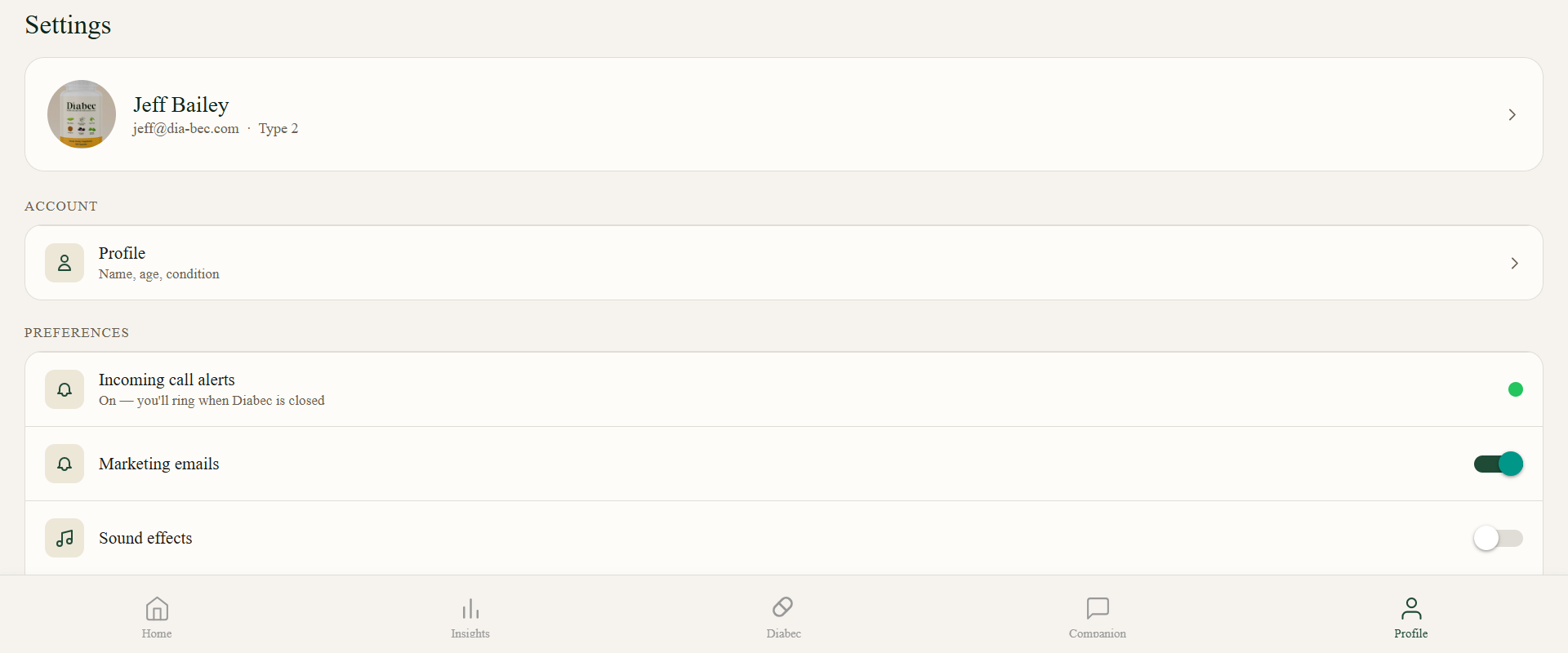
Edit name, email, password, phone, diabetes type, units, time zone.
Add, remove, or change permission level for anyone in your circle.
One tap downloads a complete JSON of your tracked data — glucose, meals, supplements, mood, settings. Useful for migrating to another tool or just for a backup.
Links to the Privacy Policy, Terms of Service, AI provider list, and open-source attributions.
The app is only as useful as the data you put in. A few habits that make a big difference:
| Problem | Try this |
|---|---|
| Notifications not arriving | Profile → Incoming call alerts → Enable. On iPhone the app must be installed to home screen first. If "Blocked," re-enable in browser settings. |
| Voice mic does nothing | Allow microphone in your phone's browser settings, then reload. On iOS, mic only works in Safari (or installed PWA), not in-app browsers like Instagram's. |
| Meal photo says "unclear" | Take from above, in good light, whole plate in frame. Try once more or type/speak instead. |
| Glucose number won't save | Check unit selector — entering 100 in mmol/L mode triggers a range warning. Switch units in Profile → Settings. |
| Can't hear the call ringtone | Volume up; remove from Do Not Disturb. Silent mode silences it. |
| Stuck on "Connecting…" during a call | Tap Cancel. After 30 sec the app auto-cancels. Try again. |
| Forgot password | Login screen → Forgot password → check email (also spam). |
| Want to switch units (mg/dL ↔ mmol/L) | Profile → Settings → Units. Existing readings convert automatically. |
| Care Circle invite never arrived | They should check spam. Resend from Profile → Care Circle. Link expires after 7 days. |
| App feels slow | Close other browser tabs; restart browser. Second launch is always faster. |
| Want to delete one entry, not the whole account | Tap the entry on the home timeline → Delete. |
| Switched phones | Just log in on the new phone. Everything is in your account, not on the device. |
If something still isn't right: email jeff@dia-bec.com with a short description and a screenshot if you can.
Q. Is Diabec free?
The app is free to use. The supplement subscription on dia-bec.com is paid.
Q. Does Diabec replace my doctor?
No. Diabec helps you organize your data and notice patterns — your doctor uses that data to advise you. We are companions, not clinicians.
Q. Can Diabec send me reminders?
Yes. Set them per-supplement, or in Profile → Notifications.
Q. What happens if I lose internet?
You can still log entries — they sync the next time you connect. AI features (meal photo, Companion) need the internet.
Q. Who sees my data?
By default: only you. Care Circle members see what you allow. AI providers (Anthropic, OpenAI, Google) process queries briefly and do not train on your data. Full details in the Privacy Policy.
Q. Can I use Diabec without a CGM or meter?
Yes — log meals, mood, sleep, and supplements without numeric glucose. You'll see fewer correlations but still useful patterns.
Q. Can I share my data with my doctor's electronic health record?
Not directly yet. Use Doctor PDF report or Export my data.
Q. Is the app HIPAA compliant?
Diabec is positioned as a wellness app, not a HIPAA-covered health record. We follow strong security practices (encryption at rest, TLS, access controls) and GDPR for EU/UK users. If your provider needs a HIPAA Business Associate Agreement, contact us first.
Q. How do I cancel my subscription?
dia-bec.com → My account → Subscriptions → Cancel before your next charge. Or email jeff@dia-bec.com.
Q. Does Diabec work in my country?
The app works worldwide. Supplement shipping is currently US, UK, Canada, Australia, Singapore. Check shop checkout for current options.
Q. Is there an Apple Watch / Garmin / Fitbit app?
Not yet. You can connect Apple Health on iPhone for sleep data; deeper wearable integrations are on the roadmap.
Q. Do you offer phone support?
Yes — Profile → Call Diabec opens a voice line to our AI agent for general questions. For complex orders, email jeff@dia-bec.com and we'll call back.
| Channel | Best for | Speed |
|---|---|---|
| In-app Companion | Questions about your own data | Instant |
| Call Diabec (Profile → Call Diabec) | Order and account questions, voice | Usually within seconds |
| Email jeff@dia-bec.com | Anything that needs a written reply, refund requests | Within 1 business day |
| Privacy / GDPR requests | Data access, correction, deletion, EU representative | Within 30 days (legal max) |
Operating hours for human reply: Mon–Fri, 9:00–18:00 UK time. The AI agent is available 24/7.
Diabec is operated by NIBARTECH LTD. For terms and privacy, see the Terms of Service and Privacy Policy. Effective date: 2026-04-15. © 2026 Diabec. All rights reserved.